How to bid on CanadaBuys: a step-by-step guide
·
CanadaBuys is the Government of Canada's tendering service. It shows notices from Public Services and Procurement Canada (PSPC), other federal departments and agencies, the broader Canadian public sector, and the NATO Support and Procurement Agency (NSPA).
1. Find a notice
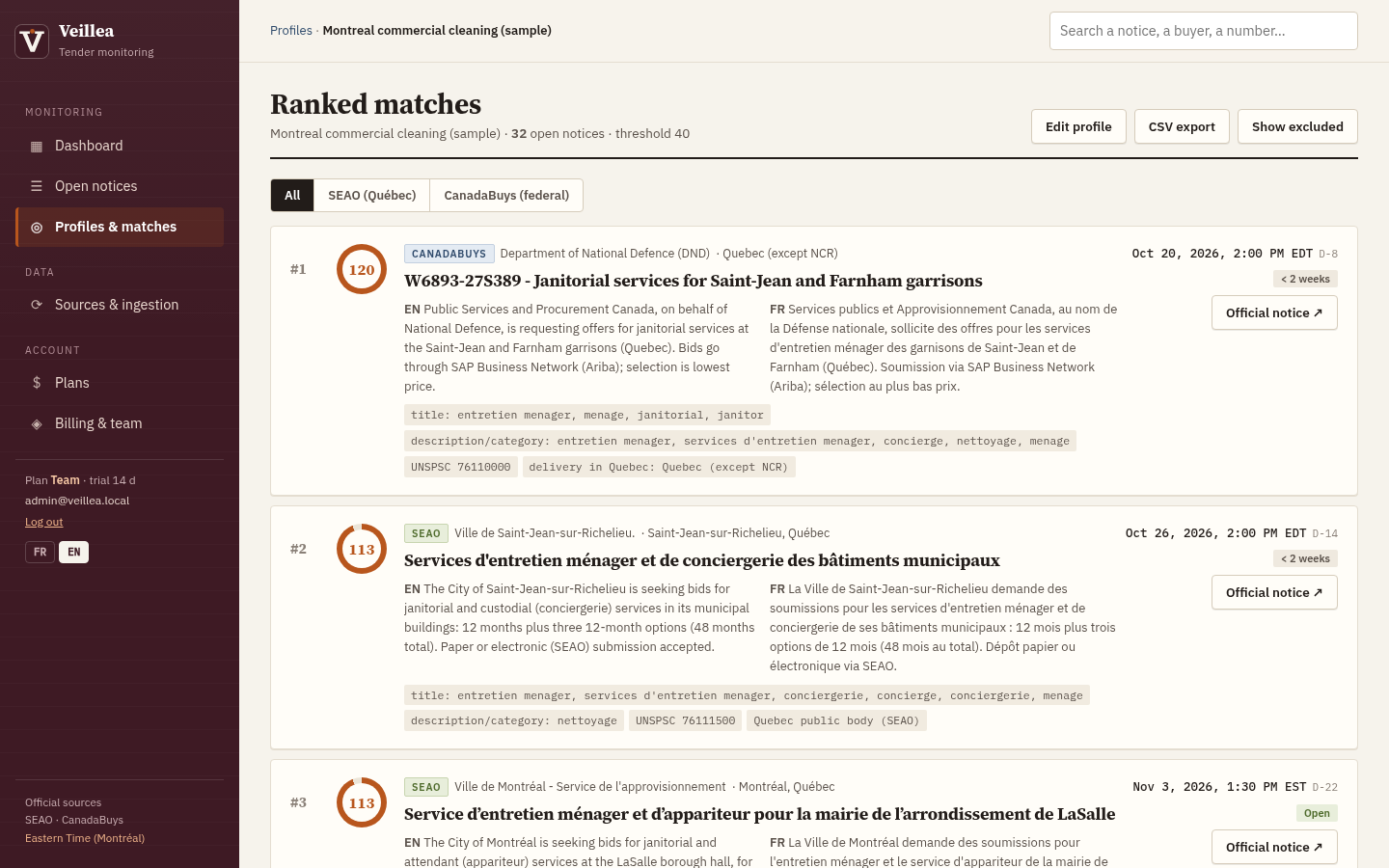
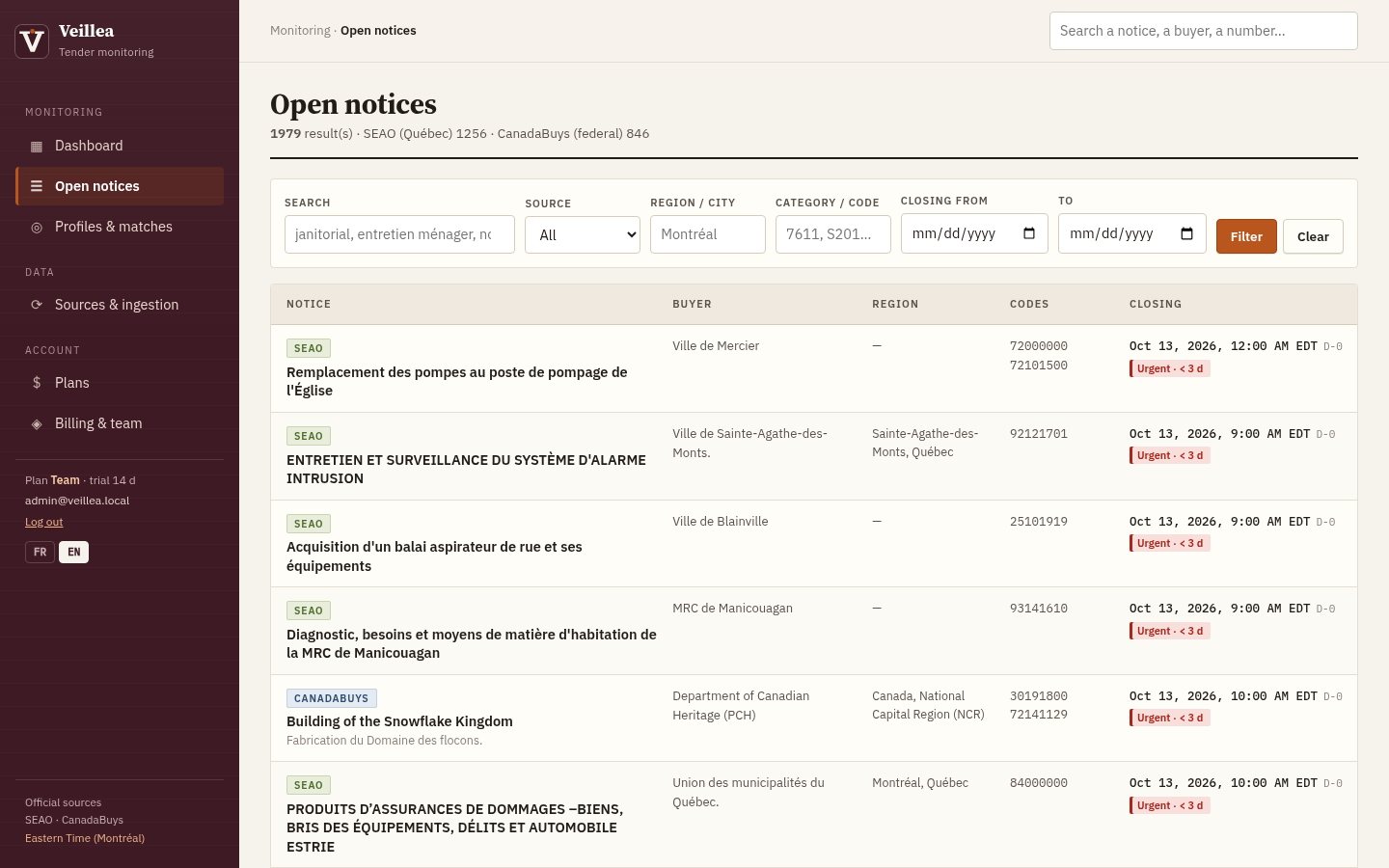
Notices are on CanadaBuys' Tender opportunities page; the Organization column shows who posted each one. Every notice states the delivery method you must use to bid. Veillea monitors CanadaBuys and flags the notices that match your profile, with an English and French summary.
2. Understand who posted it, and where to bid
- PSPC posts on SAP Business Network (formerly SAP Ariba) on behalf of departments, agencies and Crown corporations. You view and bid in SAP Business Network.
- Other federal departments or agencies posting on their own put solicitation documents directly in the notice's Bidding details tab, with bidding instructions.
- Provinces, territories, municipalities, academic institutions, schools, hospitals and some Crown corporations: the notice links to the third-party site where it was originally posted; an account and fees may apply (stated in the notice's Description tab).
- NSPA: the notice links to the NSPA website.
3. Register on SAP Business Network (PSPC notices)
- Create a free account using CanadaBuys' registration guide (a checklist is provided).
- Complete the Government of Canada questionnaire: questions 3 to 8 are required to bid; question 9 completes full registration.
- CRA business number: not needed to bid, but required before a contract, standing offer or supply arrangement is awarded. CanadaBuys recommends completing full registration to avoid delays.
You need an account even just to view PSPC notice details in SAP Business Network.
4. Respond to the notice
From the CanadaBuys notice, open the Bidding details tab, follow the link to SAP Business Network, sign in, then click Respond to see the event, accept prerequisites, access documents and submit your response before the closing date.
5. Get help
The CanadaBuys Service Desk can help by phone, email or chat.
Veillea does not replace registering on SEAO, CanadaBuys or a buyer's portal: to get documents and bid, you still use the official platform. Summaries help you triage; the official notice always prevails.
Start free Start 14-day free trial
14-day free trial on paid plans, no credit card.
Frequently asked questions
Does it cost money to bid on CanadaBuys?
The SAP Business Network account used for PSPC notices is free. For notices posted on third-party sites (provinces, municipalities, etc.), fees may apply; they're stated in the notice's Description tab.
Do I need a business number to bid?
Not to bid, but a CRA business number is required before a contract, standing offer or supply arrangement is awarded.
What is SAP Business Network?
It's the web-based tool (formerly SAP Ariba) PSPC uses to post tender notices and receive bids.
Are all CanadaBuys tenders submitted through SAP Business Network?
No, only PSPC's. Other departments attach documents to the notice, and provincial, municipal or NSPA notices link to the original site.
How do I get alerts for new CanadaBuys tenders?
Veillea monitors CanadaBuys (every 2 hours on real-time plans) and SEAO, and sends you the notices that match your profile, summarized in English and French.
Related pages
- How SEAO works
- Québec tender thresholds 2026-2027
- How to bid on CanadaBuys
- Best tender alert services in Canada
- Construction tenders in Québec
- Hydro-Québec tenders
- Montréal municipal tenders
- IT tenders in Québec
Start free Start 14-day free trial
14-day free trial on paid plans, no credit card.
Product screenshots